Tuesday, 28 July 2009

Create Honeycomb texture

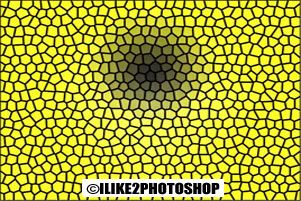
In this tutorial you will learn how to create a honeycomb texture. The honeycomb texture looks like a bee’s structure for holding wax. This tutorial requires using various filters and the gradient tool.

Honeycomb texture effect

Step 1

Open a new Photoshop document with the size 640 x 480 dimensions.
Set the foreground colour to #000000 and the background colour to #ecea26 as shown below:


Step 2

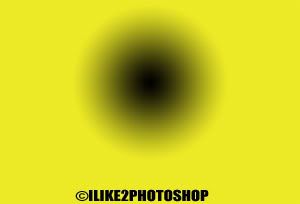
Select the gradient tool with the Radial gradient and the foreground to background gradient and drag a pattern on the canvas like below:


Step 3

Select Filter > Texture > Stained Glass and add the following settings and click ok:

  • Cell Size = 100
  • Border Thickness = 4
  • Light Intensity = 3

Step 4

Select Filter > Artistic > Poster Edge and add the following setting then click ok.
  • Edge Thickness = 1
  • Edge Intensity = 1
  • Poterization = 5


You should now have a honeycomb texture.
Sunday, 19 July 2009

Sunburst effect

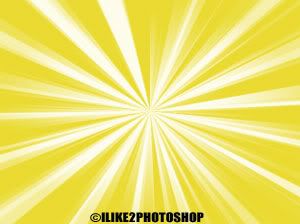
In this tutorial you will learn how to create a sunburst effect using the gradient tool and various filters. A sunburst effect is when there are beams of colour coming from the centre of the image. For more information on gradients checkout the gradient tool tutorial at learn-Photoshop.

Sunburst effect

Step 1

Open a new Photoshop document with the size 640 x 480.
Reset the colour palette by pressing the ‘D’ key. Choose a foreground colour I have selected #e9d92a colour, but you can use whatever colour you wish.


Step 2

Select the gradient tool with the liner gradient option and the foreground to background gradient like below:


Step 3

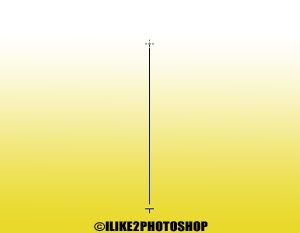
Hold down the Shift key and drag a gradient starting from the bottom of the canvas to the top. Make sure you drag a large gradient, so your canvas will look like below:


Step 4

Select Filter > Distort > Wave and add the following settings and click ok.

Number of generators = 15
Wavelength: Min = 34, Max = 43
Amplitude: Min = 15, Max = 104
Scale: Horiz = 100, Vert = 100
Type = Square

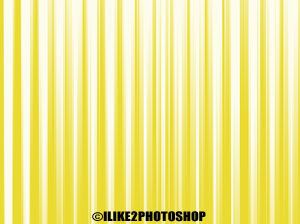
You should get the following pattern:


Step 5

Select Filter > Distort > Polar Coordinates. Ensure the ‘Rectangular to polar’ is selected and click ok.


You should now have a sunburst effect.

Friday, 17 July 2009

Create a depth of field

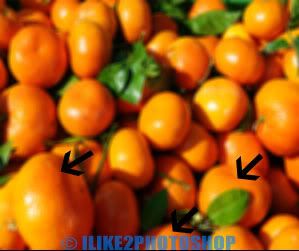
In this tutorial you will learn how to create a depth of field in your image. Depth of field is when there is a graduation transition between the sharpness and un-sharpness of an image. So the front of an image will be in focus while the back will not be in focus. I have used a free stock image of oranges which is available from: www.sxu.hu

Create a depth of field

Step 1

Open an image in Photoshop.
Duplicate the layer by selecting Ctrl + J.


Step 2

Add a box blur to your image by selecting Filter > Blur > Box Blur. Select the radius of 8 – 9 pixels depending on the size of your image. If you have a smaller image you may wish to choose a smaller radius size. The ‘Box Blur’ blurs an image based on the colour values of the neighbouring pixels. You should now have a blurry image like below:


Step 3

Select Layer > Layer Mask > Reveal All to add a layer mask to your image. Now reset the colour palette by pressing the ‘D’ key. Select the brush tool with an appropriate size and the opacity at 100%. Paint away the foreground areas where you want the image to stay in focus. Below are the areas of the image I will paint:


Step 4

Once you have completed the step above. Lower the opacity of the brush to 50% and paint a small portion of areas behind the areas you painted in the previous step. This builds up a gradually effect of depth in the image, so the foreground is in focus and the background is blurred.


You should have a depth of field in your image. Now if you compare the original image with your currently created image you should notice the foreground area is in focus while the background is blurred.

Thursday, 16 July 2009

3D text effect

This Photoshop tutorial will teach you how to create 3D text effect. This effect requires duplicating and moving several text layers to create the three dimensional effect.

3D text effect

Step 1

Create a new Photoshop document with 640 x 480 dimensions.
Select the text tool and type your message on the canvas. I used Impact font type, but you can use whatever font you wish. For this text effect, the blockier the font type the better.


Step 2

Hold down Ctrl + Alt and select down and right on the keyboard about 15 – 20 times depending on the size of your text. You can also select: down & left, up & right or up & left on the key board if you wish.

You should notice a lot of new layers in your layers panel and your text should look like below:


Step 3

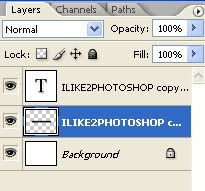
On the layers panel hold down the Ctrl key and select all of your new layers apart from the top layer and select Ctrl + E to merge all the layers together. Your layer panel should look like below:


Step 4

On the layers panel select the top layer and right click and select Blending options. Then give your text some colour by checking either the colour overlay or the gradient overlay. I have selected the gradient overlay with an orange and yellow gradient.

Now check the Stroke style and give the size of 2 or 3 pixels and the colour black then click ok.


Step 5

On the layers panel angle select the merged layer then right click and select Blending options. Now check the drop shadow style with the default settings and click ok.


You should now have a 3D text effect.


Related tutorials
Jelly text effect
Glow text effect
Text outline

Monday, 13 July 2009

Add sepia tone to image

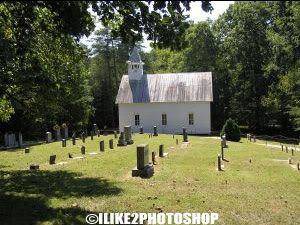
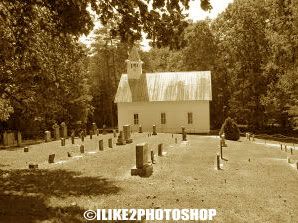
In this tutorial you will learn how to add a sepia tone to an image. Sepia tone is a monotone in shades of brown colour. The photographs back in the old days were printed photos with sepia ink. Sepia tone is used to give an image the look of an older era and also tends to look softer than a greyscale image. I have used a free stock image which is available from: www.sxc.hu.

Add sepia tone to image

Step 1

Open an image in Photoshop.


Step 2

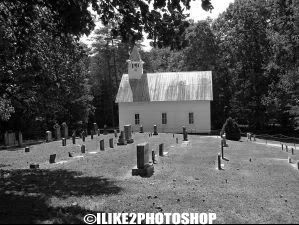
Desaturate the image to remove the colour by selecting Image > Adjustment > Desaturate. Your image should look like below:


Step 3

Now choose Image > Adjustment > Variations. Select ‘more yellow’ twice, ‘more red’ once and then ‘lighter’. You may experiment with the various variations if you wish. If your image is too bright or dark, you can select Image > Adjustment > Brightness/Contrast.


You should now have a sepia tone image.


Related tutorials
Aging a photo

Tuesday, 7 July 2009

Burnt skin effect

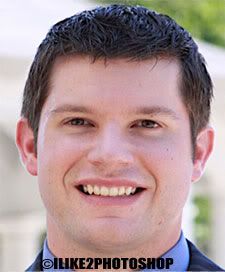
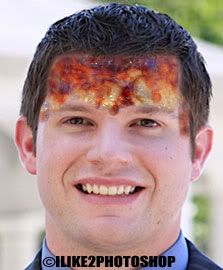
In this Photoshop tutorial you will learn how to create a burnt skin effect. You will need a relevant texture for this effect. I have found at list of free textures which are available here. I have also used a free stock image of a man which is available from: www.sxc.hu. The process of creating the burnt skin requires using layer masks.

Burnt skin effect

Step 1

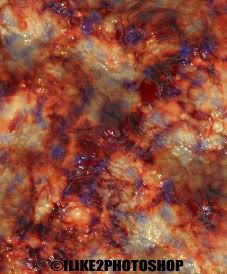
Open your images in Photoshop. I have used an image of man and for the burnt effect I have used a texture of flesh.


Step 2

Select your texture image Ctrl + A. Copy it by pressing Ctrl + C then paste it on your other image by pressing Ctrl + V. Alternatively, you can use the selection tool to drag the texture directly onto the other image.


Step 3

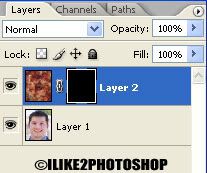
Choose Layer > Layer Mask > Hide All. You should notice the mask on your layers panel like below:


Step 4

Make sure you have white foreground colour selected.
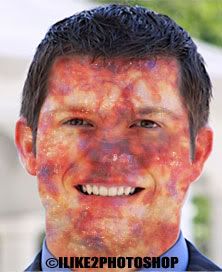
Select a brush tool with an appropriate size and paint the areas of the face. Do not paint over the teeth or the eyes.


Step 5

To make the burnt effect look more realistic change the blending option to hard light and lower the opacity to 63%. You can experiment with the various blending options and opacity if you wish.


You should now have a burnt skin effect.

Saturday, 4 July 2009

Add text to a path

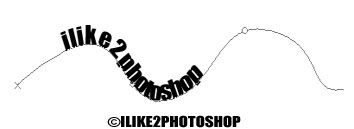
In this tutorial you will learn how to add text to a path. This process is very simply and requires drawing the path and then typing text on it. You only need three steps for this tutorial.

Add text to a path

Step 1

Open a new Photoshop documents with the 640 x 480 dimensions.
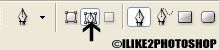
Select the pen tool from the tool bar and then select the option Paths on the tool options bars like below.


Step 2

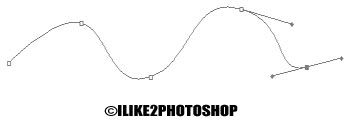
Draw your path on the canvas by clicking different points and dragging the mouse either up or down to create the curve. You can create whatever kind of curve you wish.


Step 3

Now select the text tool with whatever font you wish then click on the path and type message. Make sure you have selected Horizontal type tool.


You should now have text on a path.


Related tutorials
Perspective text effect
Text outline effect
Glow text effect

Thursday, 2 July 2009

Bigger mouth in Photoshop

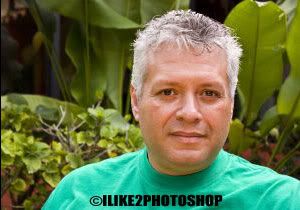
In this tutorial you will learn how to increase the size of the mouth in the Photoshop. You need to use the free transform tool for this effect. I have used a free stock image which is available from: www.sxc.hu

Bigger mouth in Photoshop

Step 1

Open an image in Photoshop.


Step 2

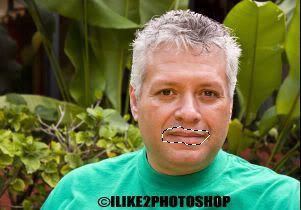
Select the lasso tool and make a rough selection around the mouth. If you want to make a more accurate selection you can use the quick mask tool.


Step 3

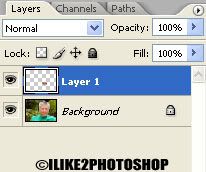
Copy the selection into a new layer by selecting Ctrl + J. Now select the free transform tool Ctrl + T and increase the size of the mouth by dragging the handles accordingly.


Step 4

Select the eraser tool and remove any access skin around the mouth area. Now select the smudge tool and blend in the mouth with the surrounding face.


You should now have a bigger mouth. I have increase the mouth size quite significantly, but you can increase the size to whatever you wish.


Related Tutorials
Increase nose size
Change eye colour
Add facial hair

Wednesday, 1 July 2009

Perspective text effect

In this Photoshop tutorial you will learn how to create a perspective text effect. Perspective text is when the text appears smaller in the distance. For this effect you need to rasterize the layer as you cannot perform transforms on a normal text layer.

Perspective text effect

Step 1

Open a new Photoshop document with 640 x 480 dimensions.
Select your text tool and type your message on the stage. I have used Myriad Pro font type, but you can use whatever font type you wish.


Step 2

Choose Layer > Rasterize > Type. This will allow you to perform the perspective transform to the text.


Step 3

Choose Edit > Transform > Perspective. Select the bottom right handle and drag it upwards and you should notice the text message appear smaller in the distance. You can create as big or small perspective effect as you wish.


Step 4 – optional

If you wish to add colour you can add Layer > Layer Style > Blending Option. Check the colour overlay box and change the colour to whatever you wish.


You now have a persepective text effect

  COPYRIGHT © 2010 · ILIKE2PHOTOSHOP · Theme by Ourblogtemplates

Back to TOP