Friday, 29 May 2009

Increase nose size

This Photoshop tutorial will teach you how to make the size of the nose larger. You need to use the free transform and the smudge tool for this tutorial. I have used a free stock image of a woman which is available from: www.sxc.hu

Increase nose size

Step 1

Open an image in Photoshop.


Step 2

Take the lasso tool and make a rough selection around the nose areas like below:


Step 3

Copy the selection into a new layer by selecting Ctrl + J.
Select the free transform tool Ctrl + T and drag the handles to increase the size of the nose. You can make your new nose as large as you wish.


Step 4

You have probably noticed the excess skin around the nose area. Take the eraser tool and remove some of the excess skin. It may helpful if you hide background layer or even lower the opacity of the layer, to give you an idea of how much skin needs to be removed.


Step 5

Select the Smudge tool with an appropriate brush size. Click and drag around the edges of the nose to blend the colour. Now select the blur tool and again drag around the edges to blend the colours. Try to be sparse when using the blur tool as using too much blur can cause your image to look odd.


You should now have a bigger nose.


Related Tutorials
Change colour of hair
Whiter teeth
Darker skin colour
Add lipstick

Tuesday, 26 May 2009

Remove teeth from image

This Photoshop tutorial will teach you how to remove teeth from an image. You will need to use the clone stamp tool for this tutorial. I have used a free stock image of a mouth which is available from: www.sxc.hu

Remove teeth from image

Step 1

Open an image in Photoshop. Use an image where you can see areas inside the mouth.


Step 2

Zoom in on your image using the Zoom Tool (Z) and look for a dark areas inside the mouth where you can take a sample from.


Step 3

Select the Clone Stamp Tool with an appropriate brush size.
Hold down the Alt key and click the left mouse button to take a sample.
Now carefully paint over the areas of tooth, since the sample area is so small you will need to keep retaking samples using the Alt Key.


You will eventually get an image that looks something like below:


Related tutorial
Whiter teeth

Vampire teeth

Ruby lips

Add lipstick

Monday, 25 May 2009

Kaleidoscope texture effect

This Photoshop tutorial will teach you how to create a Kaleidoscope texture effect. The results will give random patterns of colour which resemble a kaleidoscope. This tutorial only requires three steps.

Kaleidoscope texture effect


Step 1

Open a Photoshop document with the 800 x 600 dimensions with a white background.


Step 2

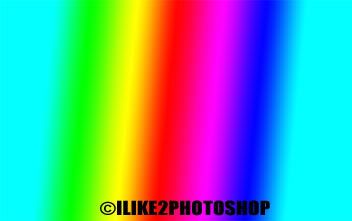
Select the gradient tool with the spectrum gradient and the mode Difference.


Now click and drag the gradient tool anywhere on the canvas using the left mouse button. Your canvas should look like below:


Step 3

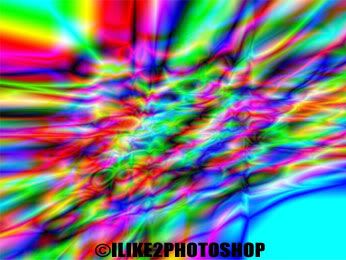
Now choose another location on the stage and keep making random gradients. You can make as many random gradients as you wish. Try to vary the direction and lengths of each gradient. You should notice a colour pattern appearing like below:


You should now have Kaleidoscope texture effect.

Wednesday, 20 May 2009

Add image to TV

This Photoshop tutorial will teach you how to add an image to a television set which is at an odd angle. You can also use this effect on a television at a regular angle. This effect can be used to change the current image inside the television. For this tutorial you will need an image of television and any other image you want to use. I have used free stock images which are available at: www.sxc.hu

Add image to TV

Step 1

Open your images in Photoshop.


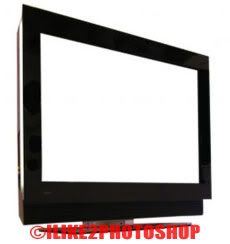
Notice I have used a television that is at an angle.


Step 2

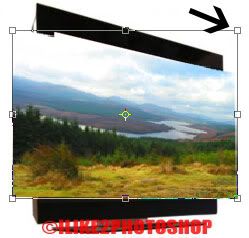
Select the image you wish to transfer and duplicate the layer by selecting Ctrl + J. Now making sure both images are slide by slide select the Move tool (V). And drag the image onto the television like below:


**You could alternatively copy (Ctrl + C) and paste (Ctrl + V) the image onto the television if you wish.


Step 3

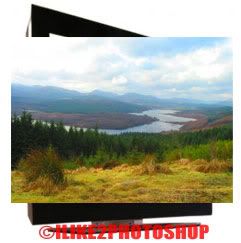
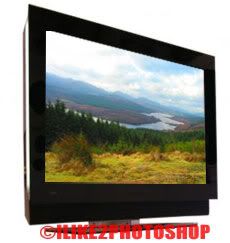
Select Edit > Transform > Distort and manipulate the image to fit inside the television by dragging the four corners like below:


You should now have a image inside the television.


Monday, 18 May 2009

Jagged border effect

This Photoshop tutorial will show you how to create a jagged border effect. This gives the effect of the image border being uneven. I will be showing you two variations of the border effect using different filter effects. I have used a free stock image of a Roman Coliseum which is available at: www.turbophoto.com

Jagged border effect

Step 1

Open an image in Photoshop. This effect will work on any kind of image, so you can choose whatever image you wish.
Insert a new layer by selecting Ctrl + Shift + N and then fill the new layer white using the bucket tool.
Now drag the new layer below your image layer like below:

Photobucket

**If the background layer is locked and you are unable drag the new layer below the image layer. Then right click on the image and select “Layer from Background” and click ok.


Step 2

Select the Image layer then using the Rectangular Marquee tool and drag a rectangular outline on your image like below. Make sure there is a decent amount of space left around the edges of the image, to allow the border effect to be seen.

Photobucket


Step 3

Create a mask layer by selecting Layer > Layer Mask > Reveal Selection. You should now have solid white border around your image like below:

Photobucket


Step 4

Select Filter > Pixelate > Crystallize and select 20 for the cell size. You can increase or decrease the cell size as you wish. By increasing the cell size you will create a more jagged effect on your image. Your image should look like below:

Photobucket

Or alternatively you can select Filter > Distort > Ocean ripple. To increase the jagged around the image you can select Ctrl + F which repeats the effect. Your image should look like below:

Photobucket


Related tutorials
Rounded image corners
Solid border

Friday, 15 May 2009

Add lipstick in Photoshop

This tutorial will show you how to add lipstick to an image in Photoshop. This effect is useful if the man/woman in your image has no lipstick or if you want to change the shade of the lipstick. I have used a free stock image of lip available at: www.sxc.hu

Add lipstick in Photoshop

Step 1

Open the image you wish to add lipstick in Photoshop.

Photobucket


Step 2

Create a new layer Ctrl + Shift + N.
Select the brush tool with an appropriate size. I have used a 7px diameter for my brush, but you can experiment your brush size. Change the brush opacity to 25%.

Photobucket


Step 3

Select the foreground colour palette and choose a colour for the lips. I have used # f0214d colour, but you could select a darker colour if you wish. This is because the opacity of the brush is to low that a dark colour will appear light. Now carefully paint over the areas of lips with the brush tool. If you make a mistake you can use the eraser tool.

Your image should something like below:

Photobucket


Related Tutorials
Whiter teeth
Ruby red lips

Saturday, 9 May 2009

Free fonts

Fonts or typography is the appearance of single character which is categorised by the weight, design, size, metrics and proportions. The appearance of a font is important when you are designing for graphic and the web. In your computer there are only a limited number of fonts available for you to choose from. Sometimes you may wish to use a completely different style or design of font from the ones you already have.

Here is a small list free font’s available on the internet either for Windows or Mac.


1. Dafont

Dafonts is probably the largest website for free fonts. The fonts are organised in the following categories: themes, font authors and new fonts. You are also submit your own fonts as well.


2. Neatfonts

Neatfonts lets you to select the fonts on the right hand size of the homepage, which gets displayed in the central of the page. This site uses a navigation bar at the top of the page that shows the alphabetical letters of the font. By selecting a letter on the navigation bar, the corresponding fonts are displayed in a list on the right side of the page.


3. 1001freefonts

1001freefonts contains many different categories of fonts. The fonts are organised alphabetically and in different categories such as graffiti, horror and rounded.


4. urbanfonts

Urbanfonts has a similar layout to 1001freefont as it is also organised alphabetically and in different categories. However, urbanfonts have more font categories to choose from. There is also a ratings and comments feature in the display of each font. This allows you to see what other users have rated and commented for each fonts.


5. Fontface

Fontface contains more than 1000 fonts which are updated everyday. The fonts are categorised alphabetically. The only drawback of this site is the size of the download button. It is tiny compared to the sizes in the other site. Also the layout of the site could do with some work.


6. Abstractfonts

Abstractfonts is organised in categories, designers and in alphabetical order. There is also a language category which gives fonts in different categories. You can also vote and bookmark a font for when you later return to the website.

Friday, 8 May 2009

Electric texture effect

This Photoshop tutorial will teach you how to create an electric texture effect. This gives the effect of electric waves in the texture. This tutorial uses cloud filters to create the electric texture effect.

Electric texture effect


Step 1

Open a new Photoshop document with the 450 x 350 size.
Reset the palette to black and white by selecting the “D” key.


Step 2

Select Filter > Render > Clouds and then select Filter > Render > Different Clouds. You should get the following image:

Photobucket

Now select Image > Adjustment > Invert. You should get the following image:

Photobucket


Step 3

Select Image > Adjustment > Curves (Ctrl + M). I set the following curve, but can experiment with your image, then click ok.

Photobucket


Step 4

Now select Image > Adjustment > Colour balance and adjust the colour to what whatever you want using the sliders. Make sure you have the Midtones and the Preserve Luminosity selected.

Photobucket

You should now have an electric texture effect.

  COPYRIGHT © 2010 · ILIKE2PHOTOSHOP · Theme by Ourblogtemplates

Back to TOP