Tuesday, 25 August 2009

Halftone border effect

In this tutorial you will learn how to create a simply halftone border effect in Photoshop. You need to use the quick mask and the halftone filter for this effect. I have used a free stock image which is available from: www.sxc.hu. I have also previously created a jagged border effect, so take a look at that tutorial.


Halftone border effect

Step 1

Open an image in Photoshop.
Reset the colour palette by selecting the ‘D’ key on the keyboard.



Step 2

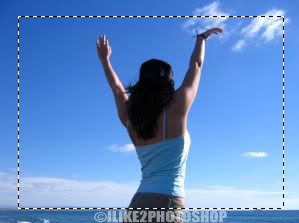
Enter quick mask mode by selecting the ‘Q’ key then take the rectangular marquee tool and make a selection around your image like below:


Step 3

Select the paint bucket tool and fill in the selected area like below. The selected area should now appear in red.
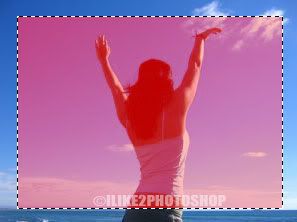


Then select choose Select > Inverse.


Step 4

Now select Filter > Pixelate > Colour Halftone and select a 10 pixel radius. Depending on the size of your image you may need to select a higher number of pixels.


Step 5

Exit from the Quick mask mode (Q) then hit the Delete key, and deselect the image by pressing Ctrl + D.
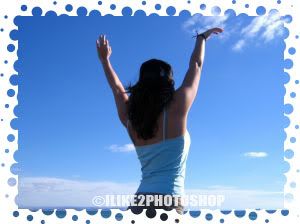


You should now have a halftone border effect.
Thursday, 13 August 2009

Text wrapping in Photoshop

In this tutorial you will learn how to text wrap in Photoshop. Text wrapping is when text is wrapped around an image. This process of wrapping text requires using shape tools and paths. I have used a free stock image of a pizza to demonstrate the text wrapping.

Text wrapping in Photoshop

Step 1

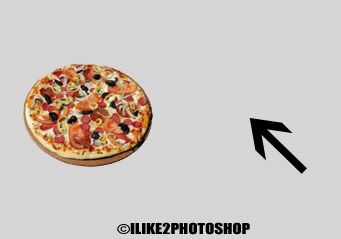
Open an image you wish to text wrap in Photoshop. Notice I have left large areas to the right where I can wrap the text. Be sure your image has enough space for you to place your text.


Step 2

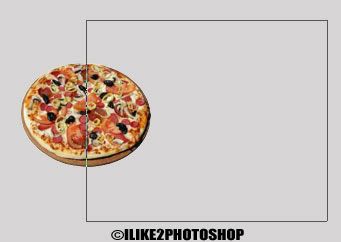
Select the rectangle shape tool with the ‘paths’ and the ‘add to path area’ options from the toolbar like below:


Step 3

Drag out a path on your image like below. The path of the rectangle shape defines the area where you text will be placed. You can make the path as large or as little as you wish.


Step 4

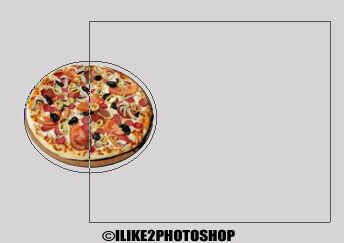
Now you need to subtract the other half of the pizza shape from the rectangular path. Select the following options below. This time I have selected ellipse tool with the ‘path’ and the ‘subtract from path area’ selected from the tool bar.


Then drag out the area you want to subtract. In my case I have dragged out an area which contains the pizza shape.


Step 5

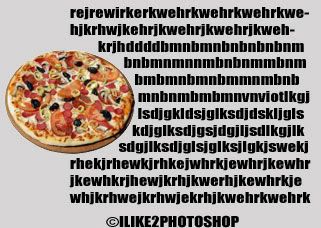
Select the text tool and click anywhere inside your path and type any message you wish. I have used impact font with black colour text, but you can use whatever font and colour you wish. To remove the paths simply select the layer below on the layers panels


You should be able to text wrap in Photoshop.

Wednesday, 12 August 2009

Create a rainbow in Photoshop

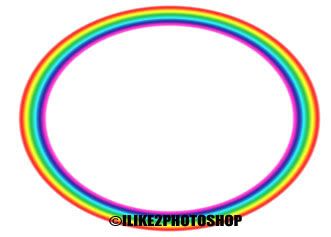
In this tutorial you will learn how to create a rainbow in Photoshop using the gradient tool. I have created a rainbow on a white canvas, but you can place your rainbow on an image if you wish.

Create a rainbow

Step 1

Open a new Photoshop document with the size 640 x 480 dimensions.
Reset the palette by pressing the ‘D’ key and insert a new layer Ctrl + Shift + N.


Step 2

Select the gradient tool with a linear gradient and transparent rainbow preset.


Change the blend mode to soft light and the opacity to 83% and also check the reverse option.


Step 3

Hold down the Shift key so that the gradient remains at a straight angle, and drag a small gradient from the top to bottom like below:


Step 4

Select Filter > Distort > Polar Coordinates and make sure the ‘rectangular to polar’ is checked and click ok. You should get the following effect below:


Step 5

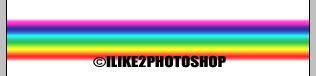
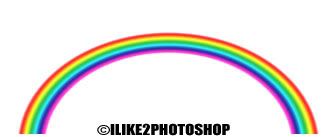
Select the Rectangular Marquee tool and cut off half of the rainbow which should leave you with the following:


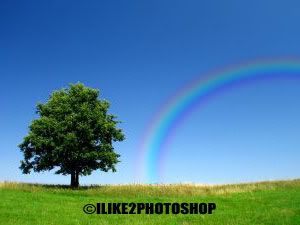
Why not try adding the rainbow effect to an image? I have also given the rainbow a Gaussian blur and lower the opacity of the layer.

Friday, 7 August 2009

Photo sketch effect

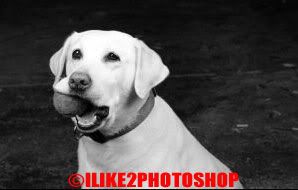
In this tutorial you will learn how to create a photo sketch effect. This effect turns your photos into a hand drawn sketch. I have used a free stock image of dog which is available from: www.sxc.hu.

Photo sketch effect

Step 1

Open an image in Photoshop and duplicate the layer by pressing Ctrl + J.


Step 2

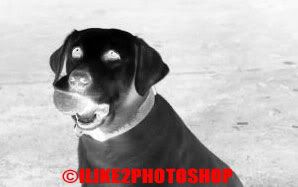
Remove the colour from the image by selecting Image > Adjustment > Desaturate. You should get the following black and white image like below:


Step 3

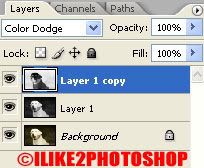
Duplicate the layer again by selecting Ctrl + J. Then invert the image by selecting Image > Adjustment > Invert.


Step 4

From the layers panel change the blending option to Colour Dodge. You image may turn completely white.


Step 5

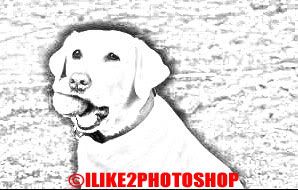
Select Filter > Blur > Gaussian Blur and adjust the radius to your preference. I have selected a 5 pixel radius, but you can experiment with your image. Dragging the slider more to the right will create a more emphasized image.


Step 6

Merge all your layers together by selecting all your layers pressing Ctrl + E.


You should now have a photo sketch effect.

Tuesday, 4 August 2009

How to install Photoshop brushes

This tutorial will teach you how to install brushes in Photoshop. This process is quick and simple and only requires three steps. There is also a temporary method of installing brushes which is also discussed below.

How to install Photoshop brushes

Step 1

Download the brush file then extract the file to your desktop, or any location you wish.


Step 2

Open up the directory for your brushes. The default location for a windows computer is: C:\Program Files\Adobe\ (Your Photoshop version) \Presets\Brushes


Step 3

Now drag the brush file into the ‘Brushes folder’. You should now be able use your downloaded brush next time you restart Photoshop.


Temporary method of Installing Brushes

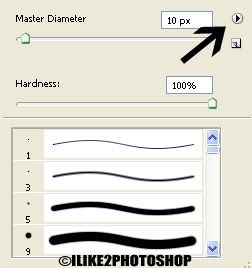
There is also a temporary method of installing brushes in Photoshop. Although the brush will be removed next time you start Photoshop. Firstly, you need to select the brush tool and then the brush drop down menu.


Select the circle with the arrow then select ‘Load Brushes’ from the drop down menu. A load pop-up window should appear, then select your brush file and click ok.

  COPYRIGHT © 2010 · ILIKE2PHOTOSHOP · Theme by Ourblogtemplates

Back to TOP