Wednesday, 4 February 2009

Freebies

In this freebies page you will find a collection of Photoshop resources which are available to download for free. Remember to subscribe to be updated with freebies.

Photoshop alternatives - Photoshop cost quite a lot of money to buy, so here is a list of free open source Photoshop alternatives.

Online Photo Editors - Why not try free online Photo editors instead of software editors. Online editors can provided a quick and easy way to edit Photos without having to buy or download any software.

Free fonts - If you ever get bored of the default fonts on your computer, then you can checkout this list of free fonts. There are literally thousands of different fonts to choose from. All the fonts in this list are suitable for the mac and windows.

Free image hosting - This is a list of free image hosting websites on the internet. The major benefit of hosting your images online is that they can be accessed on any computer with an internet connection.

Free Photoshop brushes - This is a collection of free Photoshop brushes.

10 Free Photoshop actions
- This is a selection of 10 free PS actions.
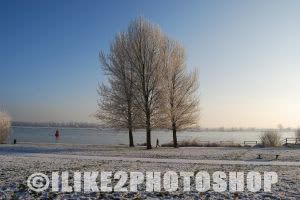
Add snow to image

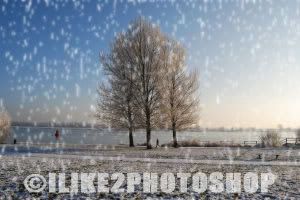
This Photoshop tutorial will teach you how to add snow to an image. This will give the effect of snow falling from the sky. This tutorial is similar to the rain effect. I have used a free stock image of a winter which is available at: www.sxc.hu

Add snow to image

Step 1

Open an image in Photoshop.


Step 2

Select Ctrl + Shift + N to insert a new layer. If a new layer window appears click ok. Now select D to reset the colour palette and choose the paint bucket tool and fill the new layer with the colour black.

Step 3

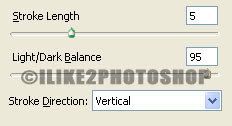
Select Filter > Sketch > Graphic pen and add the following settings: Stroke length at 5, light/dark balance at 95 and stroke direction at vertical.


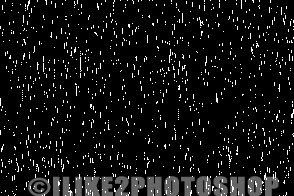
If you want more snow in your image decrease the stroke length. You image should now look like below. If you image does not look like below then you probably have not reset the colour palette.


Step 4

Select Filter > Blur > Gaussian blur. I set the radius to 1pixel, but you can experiment to get the best effect.


Step 5

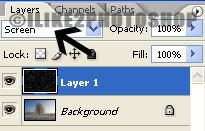
Now set the layer style to screen.


You should now have an image with snow.

  COPYRIGHT © 2010 · ILIKE2PHOTOSHOP · Theme by Ourblogtemplates

Back to TOP